Add External Tenant Operators and Assign Roles
When you login to OVOC for the first time, a connection is established with Azure and the Application Registration for the main tenant, for example, ‘OVLAdmin’ is added under the Enterprise applications for your registered tenant on Azure. You must then login to the Azure portal, navigate to this application and assign the ‘admin’ role to the designated operators.This procedure is relevant for adding non-system service provider operators to OVOC.
| ➢ | Do the following: |
| 1. | Login to OVOC interface with the appropriate Admin permissions for the Azure tenant (login with Admin operators that you defined in Create Azure Groups and Assign Members. |
Initial Operator Login

The Azure authentication and Permissions request dialog is displayed:
Permissions requested
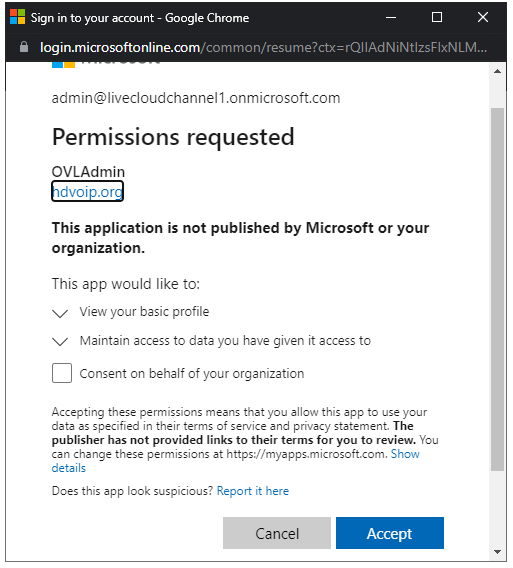
| 2. | Select the Consent on behalf of your organization check box and then click Accept. |
If for any reason, you did not select "Consent on behalf of your organization" or do not have ‘Admin’ permissions for this tenant, then this operation cannot be successfully applied until approved by Service Provider Admin, see Troubleshooting - Granting Admin Consent.
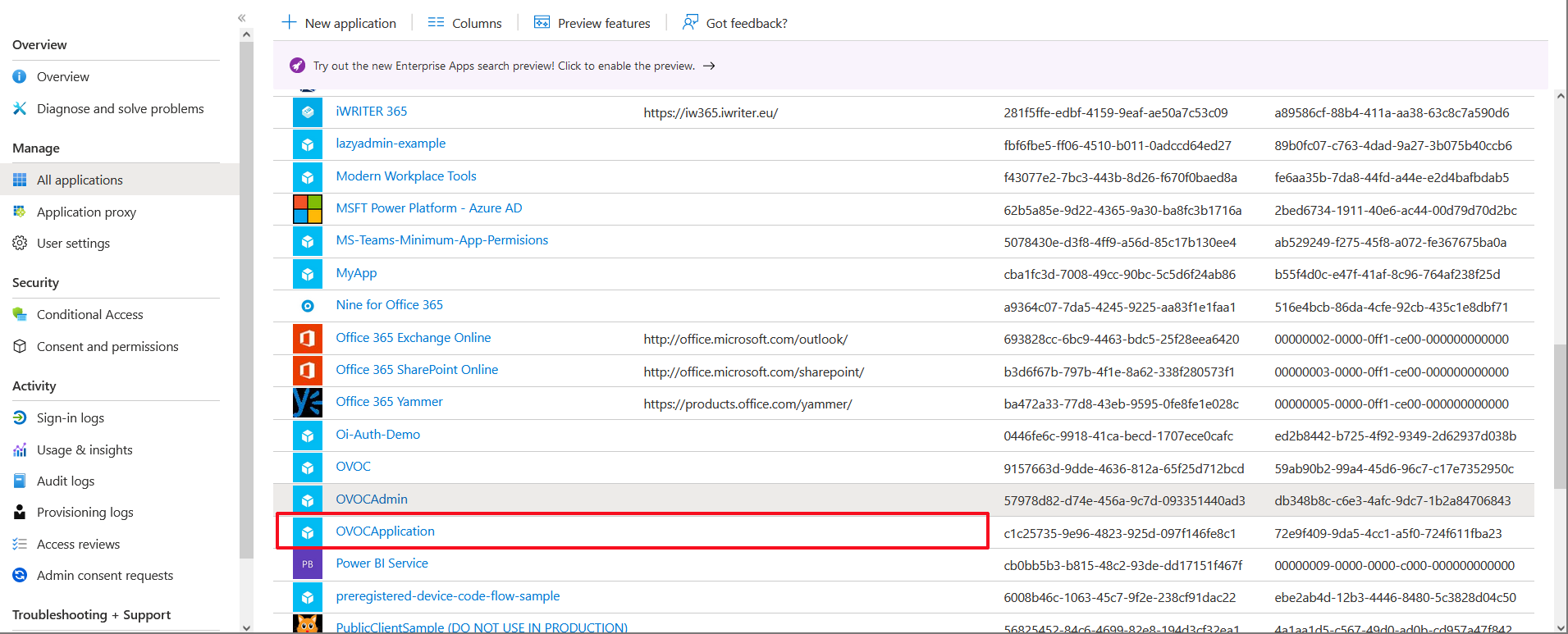
| 3. | Login to the Azure portal with Tenant ‘Admin’ permissions and navigate to the newly created OVOC application (Enterprise applications > OVOCApplication). |
OVOC Application
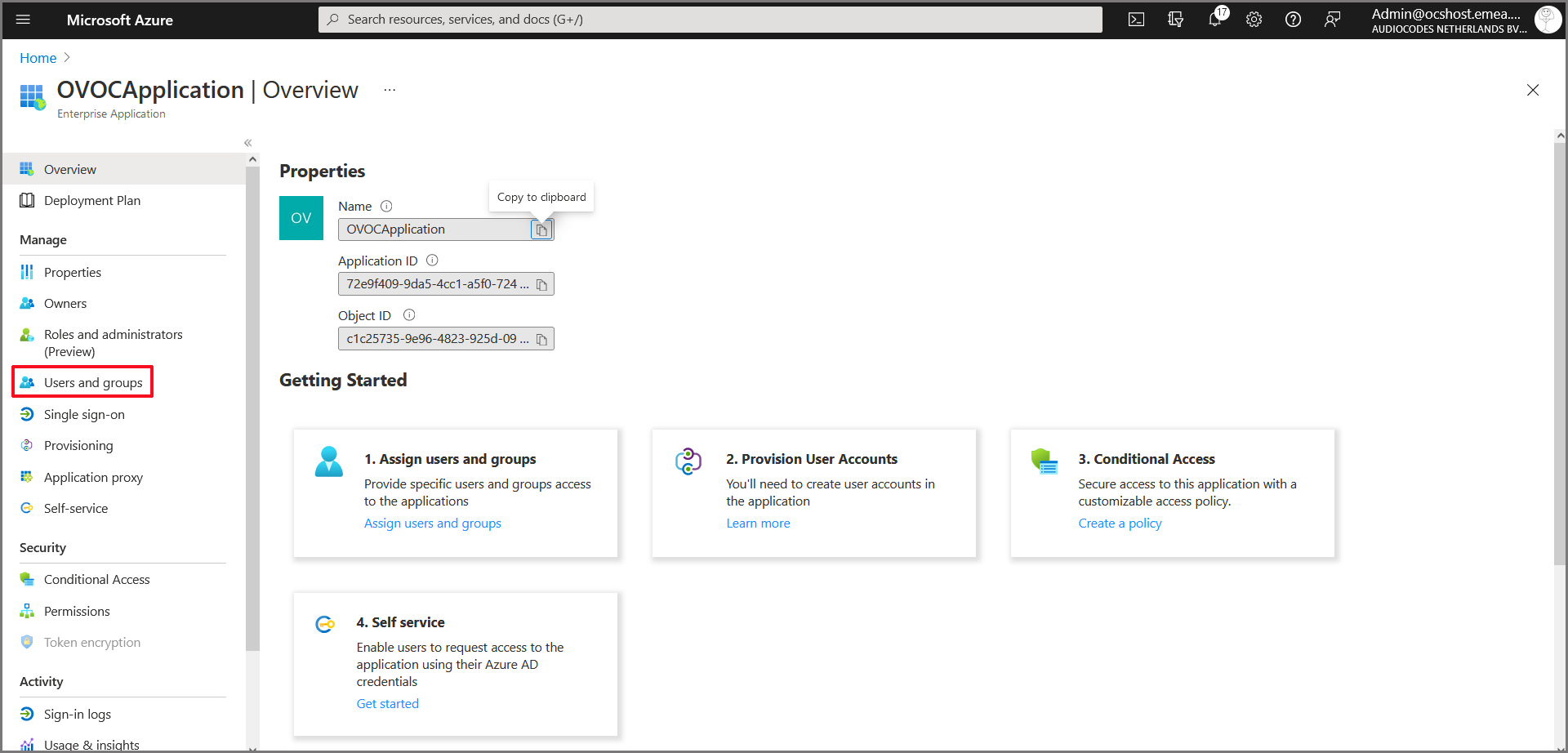
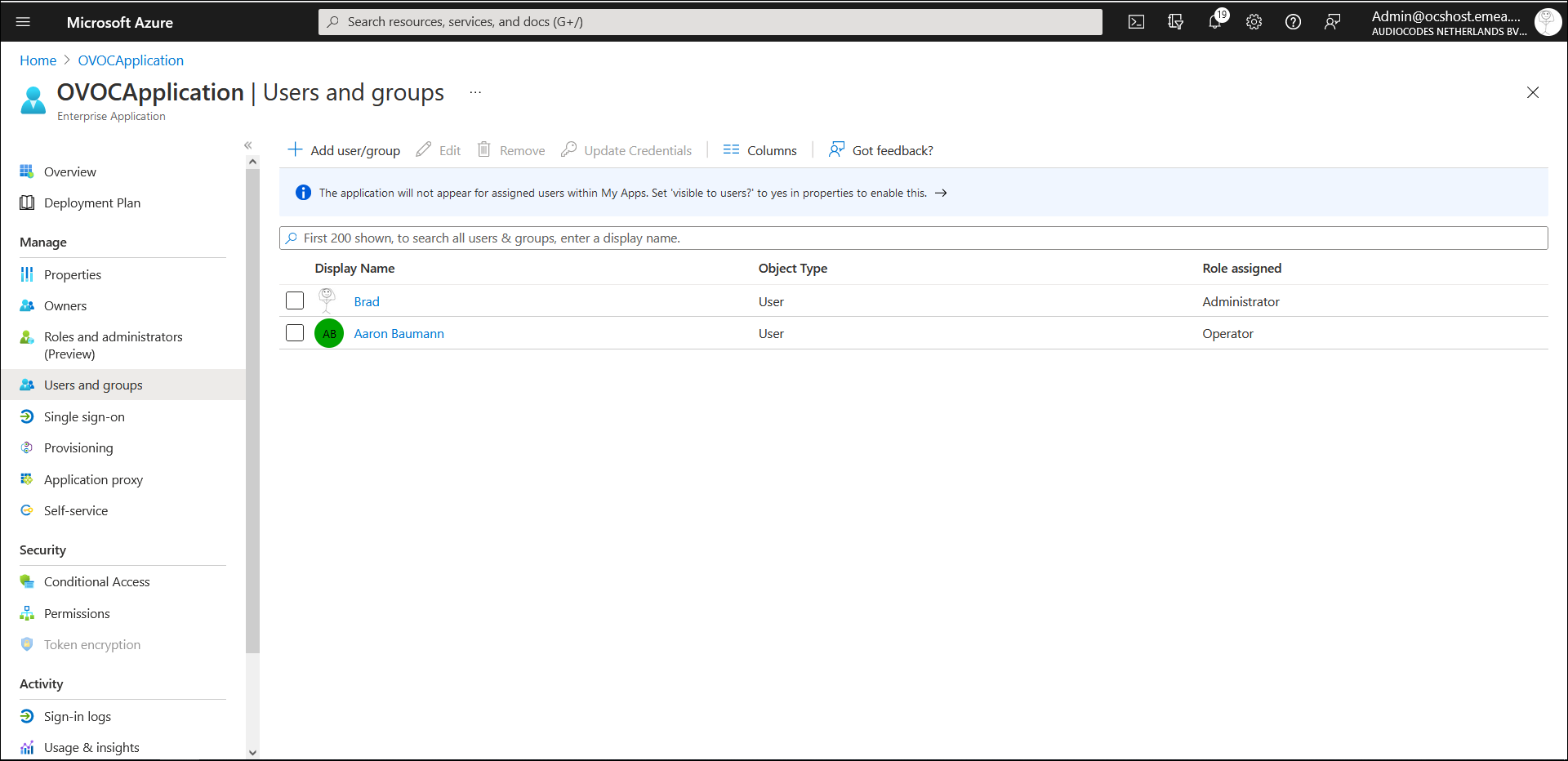
| 4. | In the Navigation pane, select Users and groups. |
Users and Groups
| 5. | Do one of the following: |
| ● | Assign role to a new user |
| ● | Assign role to existing user |
Assign Role to New User /Existing User
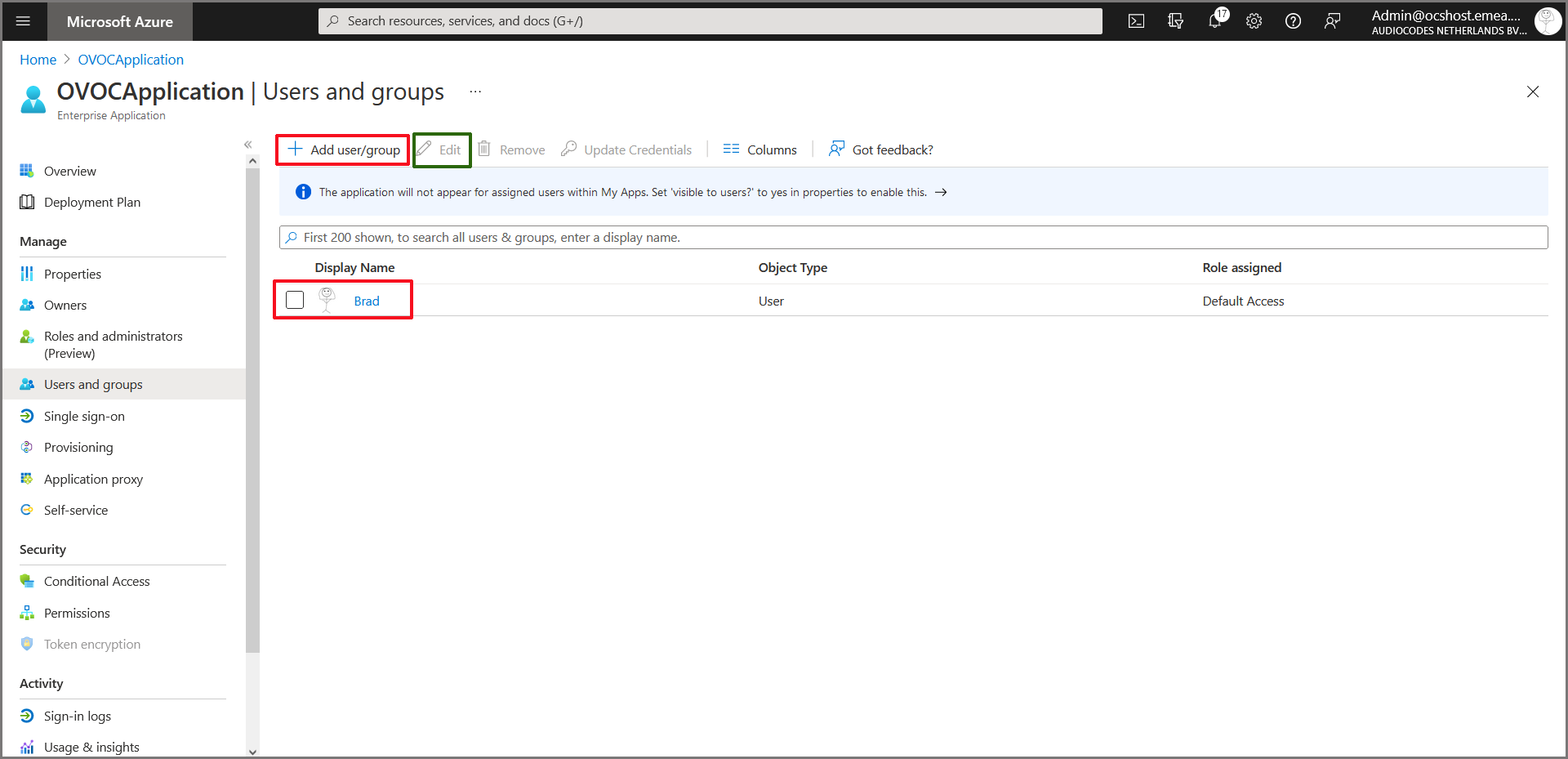
| ➢ | To assign a role to an existing user: |
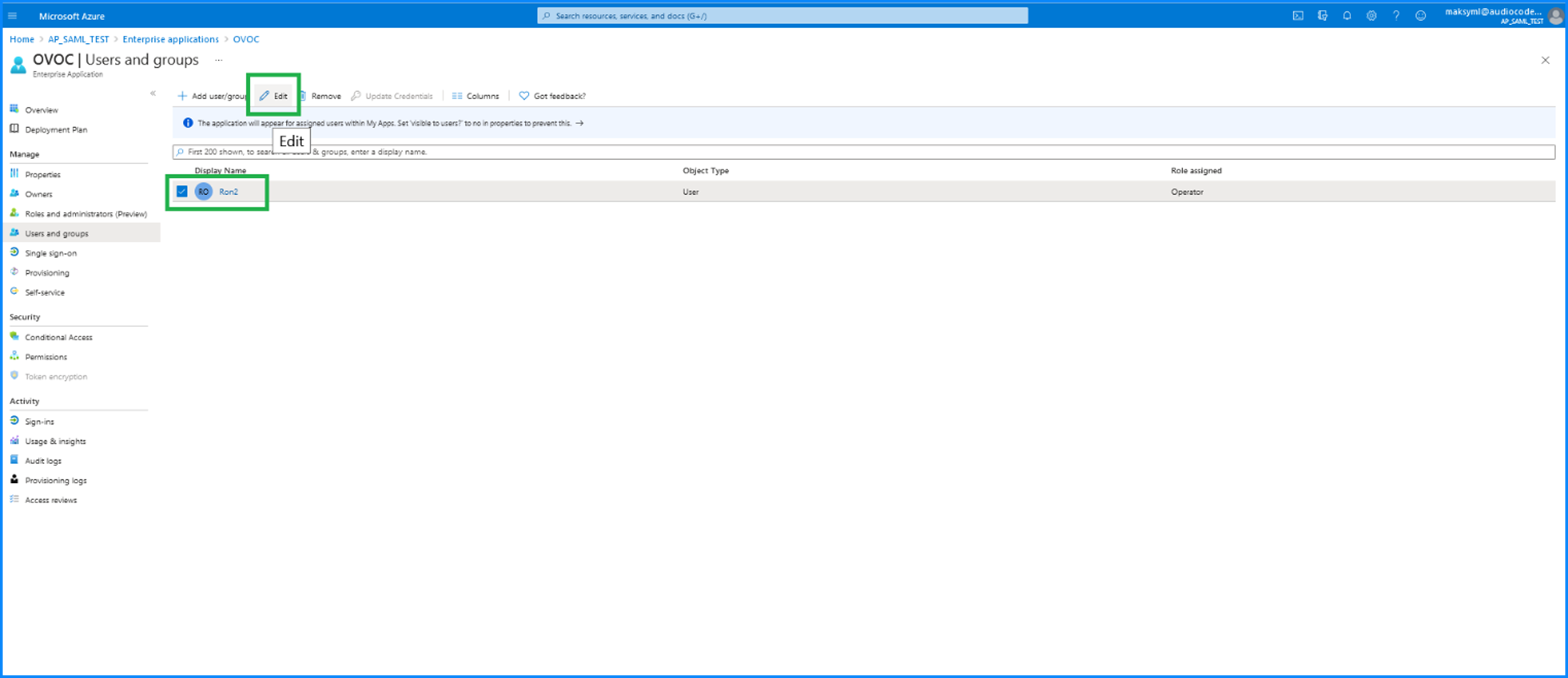
| 1. | Choose a particular user in the list and then click Edit. |
Edit Assignment
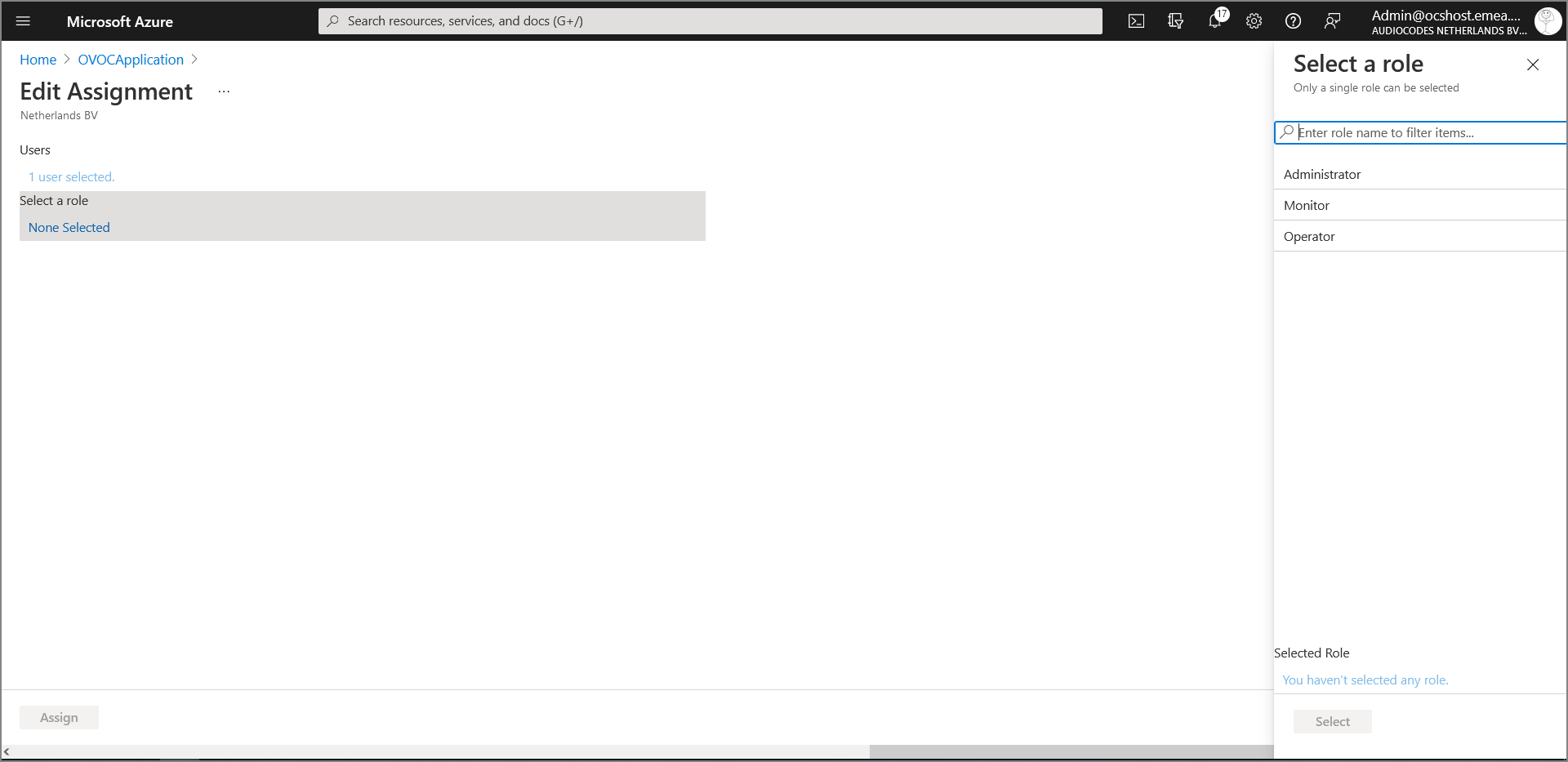
| 2. | In the left pane, under “Select a role” click None Selected. |
| 3. | In the right pane, choose the relevant role and then click Select. |
Add Assignment
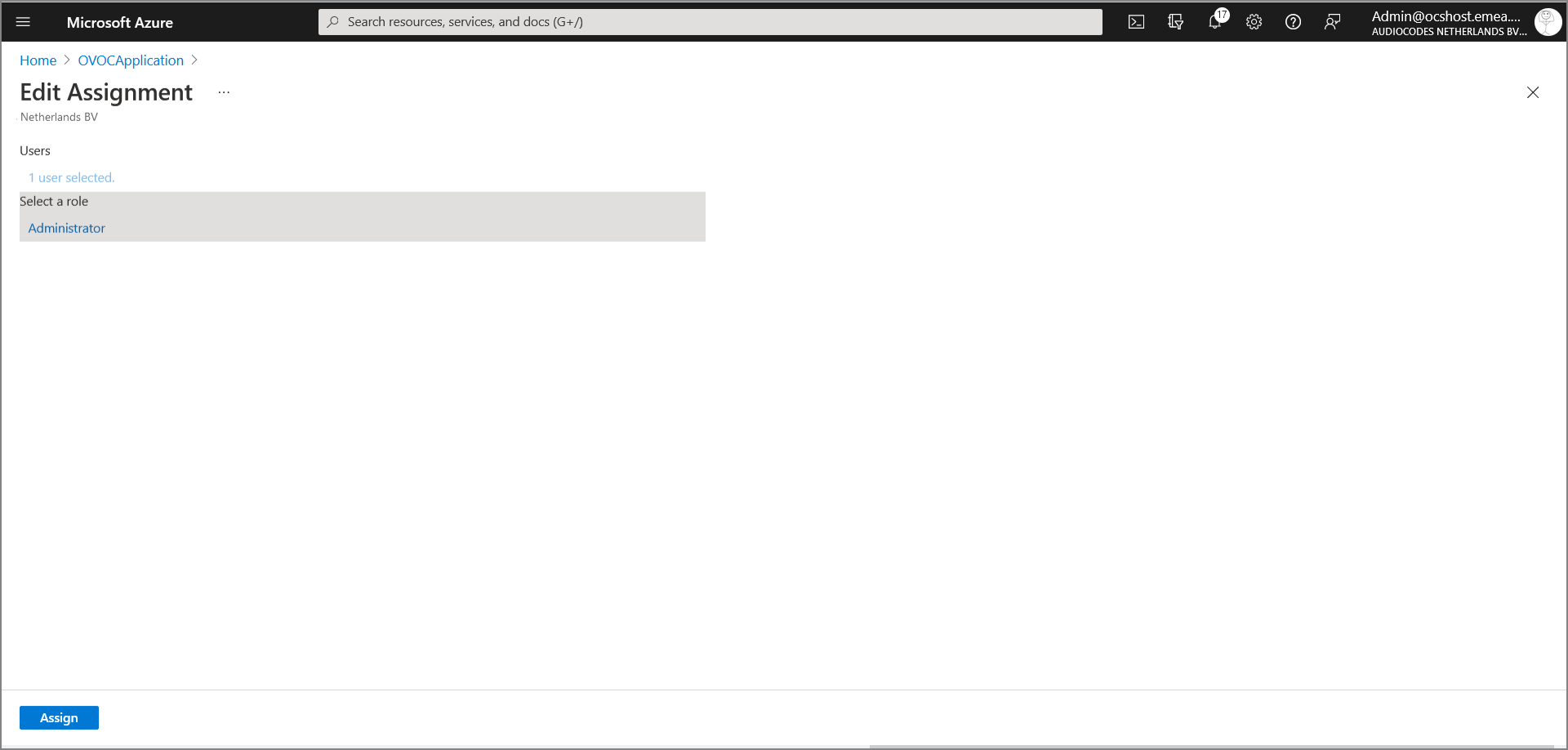
| 4. | Confirm by clicking Assign. |
Existing User Defined with "Admin" Role
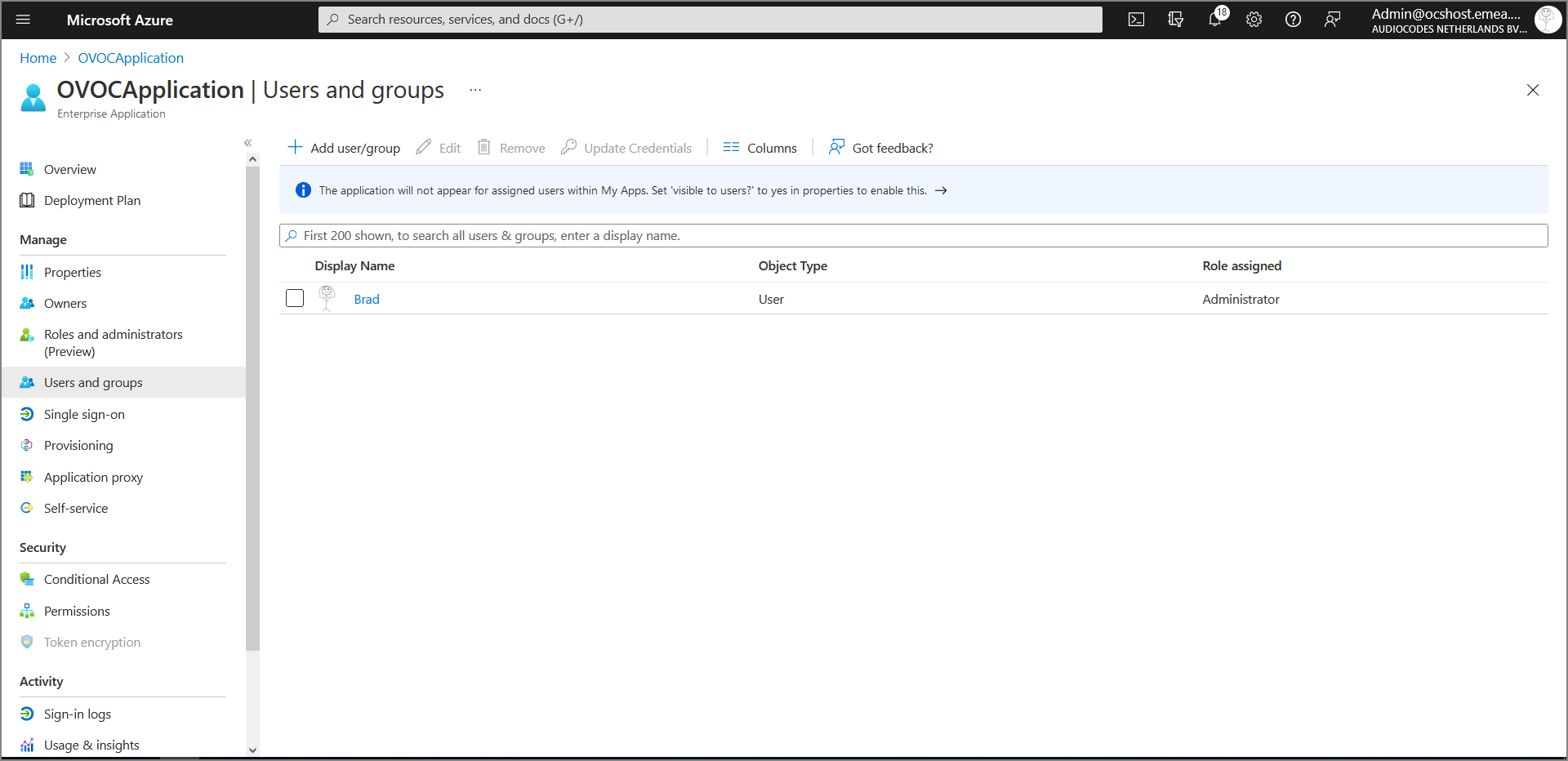
| ➢ | To Assign a role to a new user: |
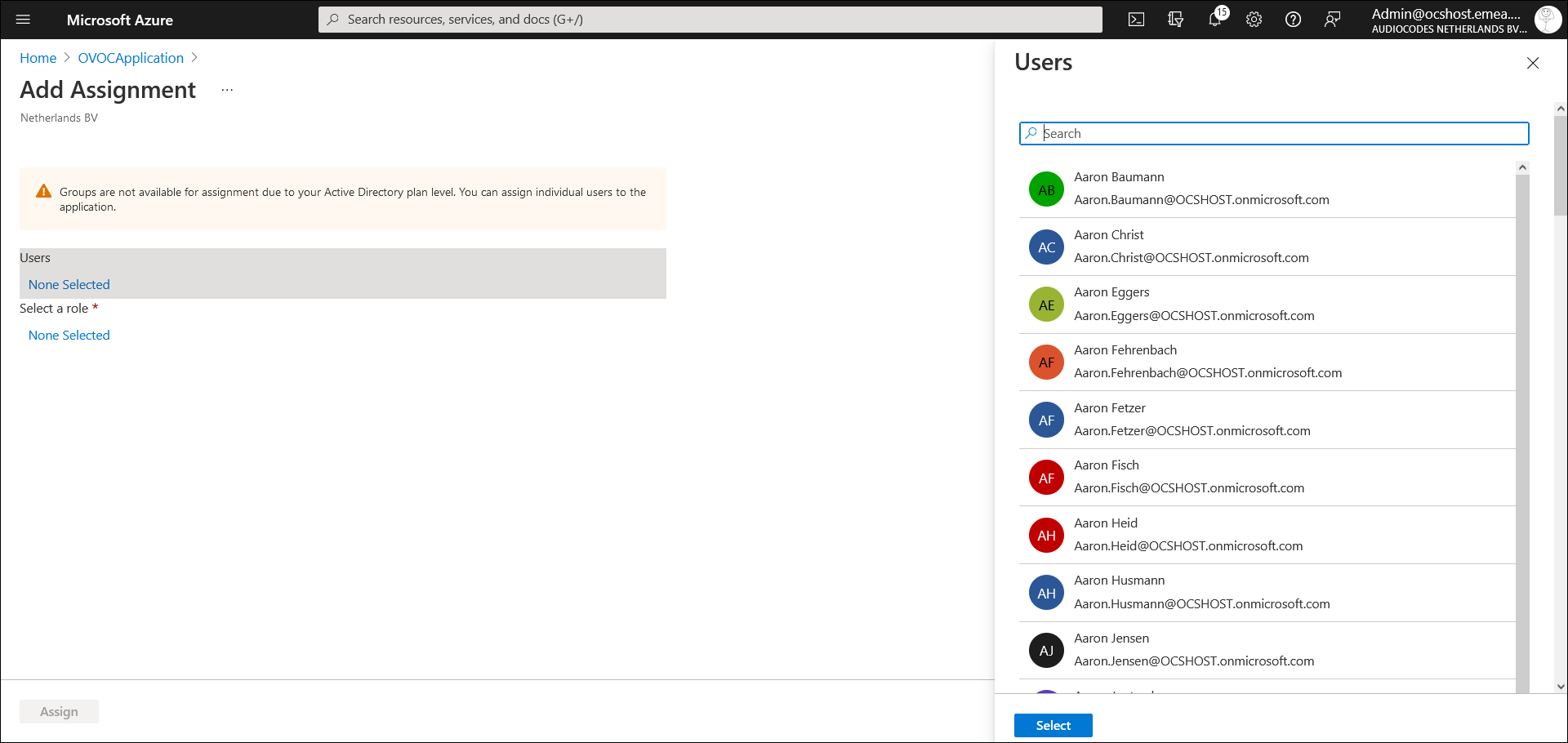
| 1. | In the left pane under Users, click None Selected. |
| 2. | In the right pane, choose the relevant user and then click Select. |
Choose User
User Selected
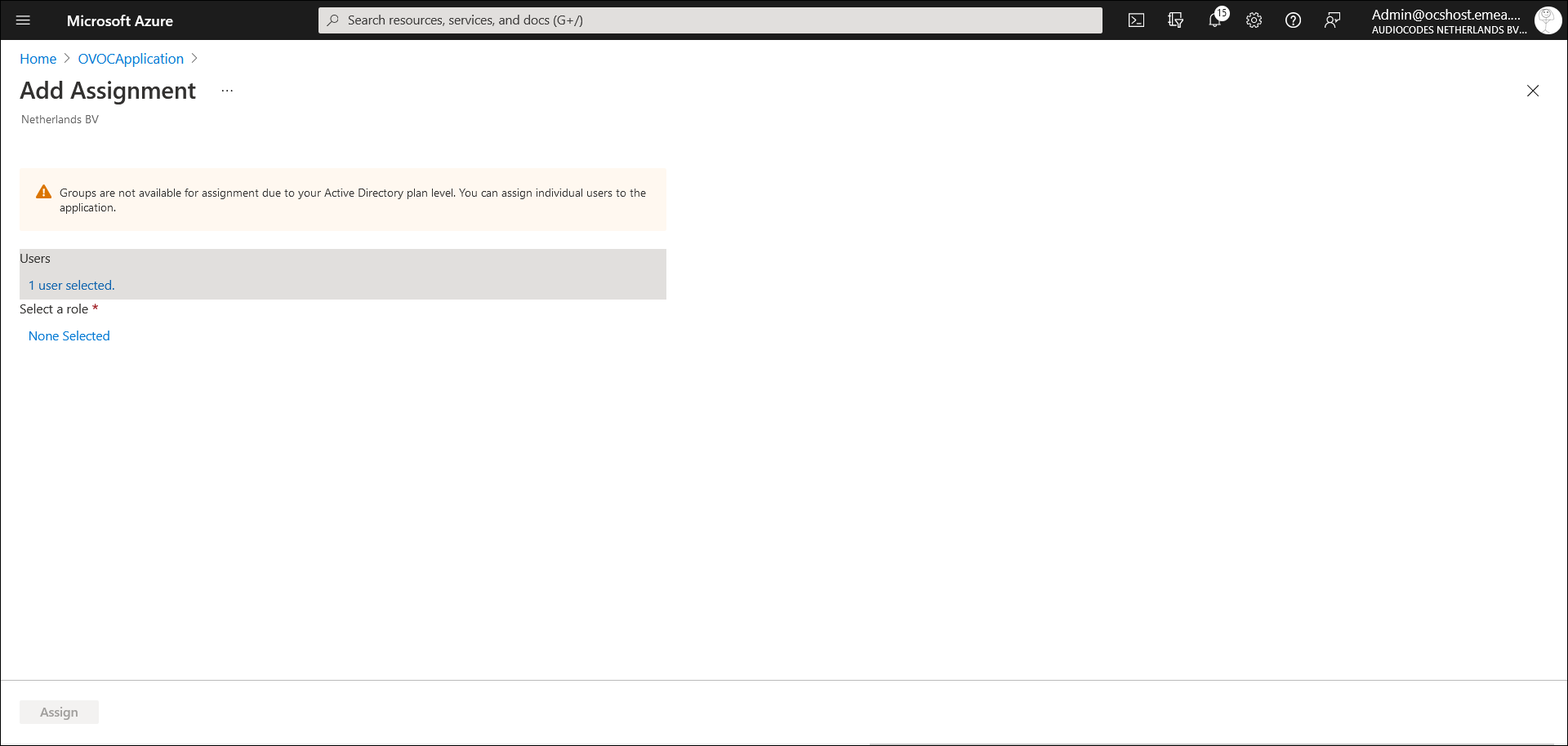
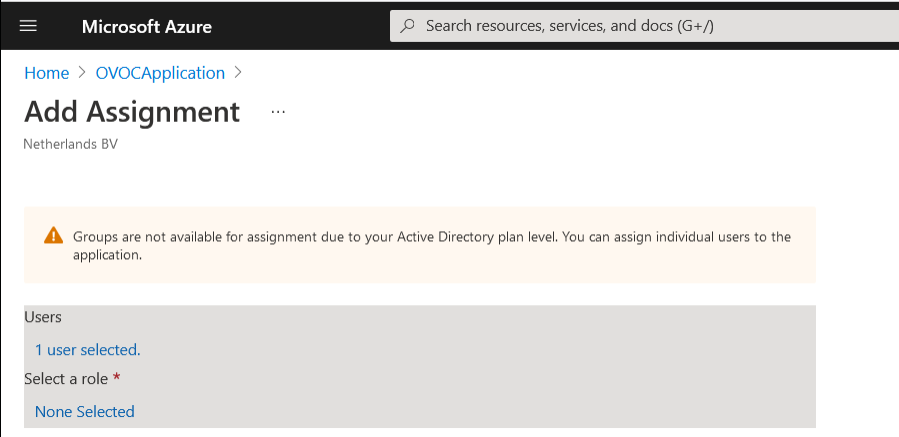
| 3. | In the left pane under Select a role, click None Selected. |
Select a Role
| 4. | In the right pane, choose the relevant role and then click Select. |
Assign Role to New User
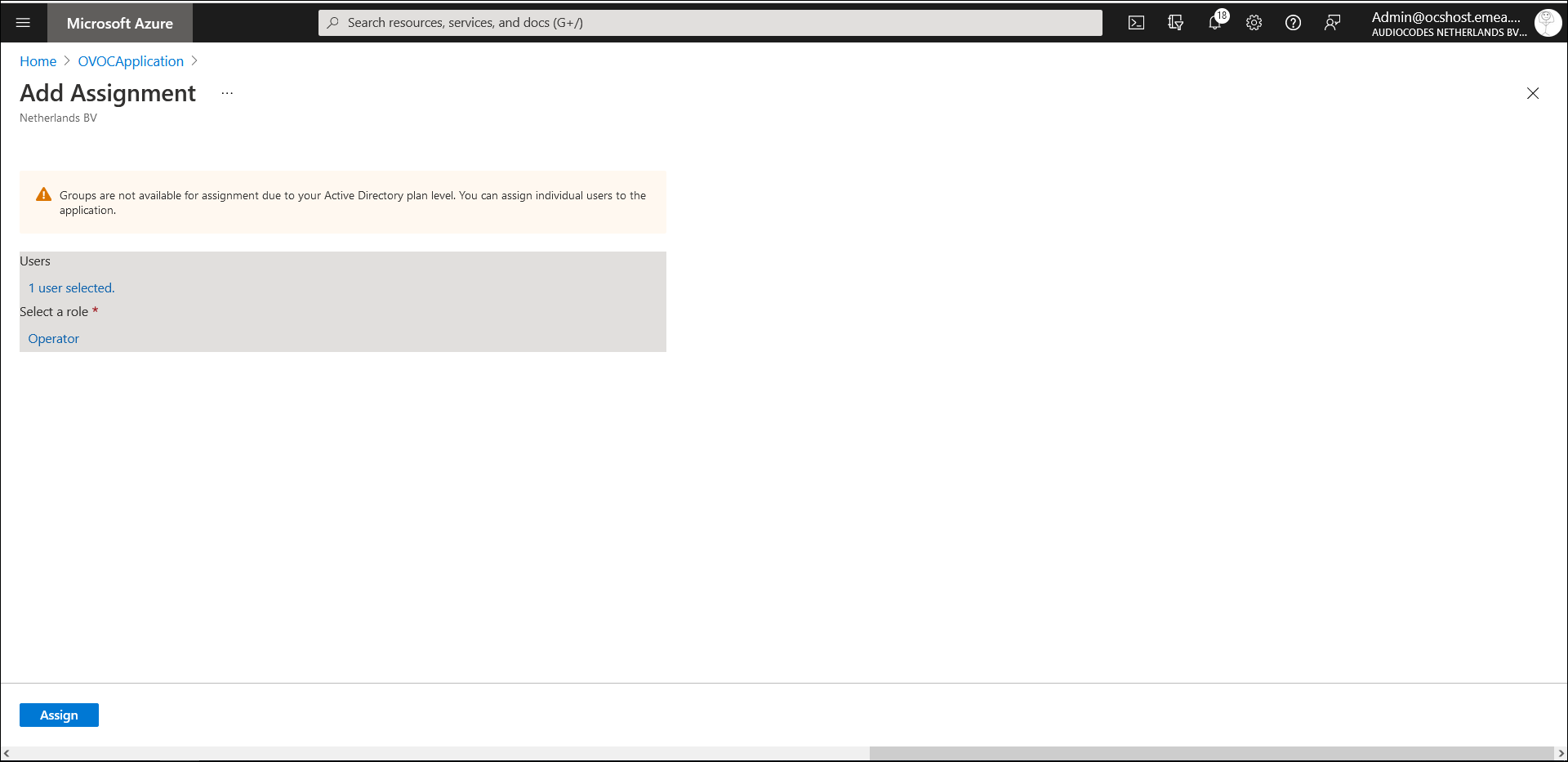
| 5. | Confirm by clicking Assign. |
New User Assigned "Operator" Role
| 6. | Do one of the following: |
| ● | If configuring a Multitenant setup for the first time proceed to Configuring OVOC Web Azure Settings - Multitenant Setup. |
| ● | If upgrading from a Single Tenant setup proceed to Configuring OVOC Web Azure Settings - Multitenant Upgrade. |